Welcome to the practical workflow for zero-click reporting in gsc. In this guide you will learn to isolate AI-driven impressions using the Performance report's AI Mode filter, compare those results with non-AI data, and identify queries that deliver answers on the SERP without a click. The simplest path is to set a stable date range, apply the AI Mode filter, export both filtered and unfiltered data, and then flag high-impression, low-click queries as zero-click candidates. For each candidate, map the ranking page, audit snippet readiness (concise opening, simple headers, and schema where relevant), and plan targeted optimizations. Finally, document ownership and a measurable plan to monitor visibility over time—focusing on zero-click signals, not just clicks—so you can demonstrate impact even when CTR declines. This is zero-click reporting in gsc done methodically.
This is for you if:
- You are responsible for SEO or content strategy and need to understand non-click visibility.
- You want to quantify and report zero-click impressions in GSC beyond CTR.
- You coordinate across marketing channels to align with paid, email, and social.
- You need a repeatable, auditable process to identify zero-click candidates and map them to pages.
- You want to demonstrate impact to stakeholders with actionable optimizations and timelines.
Prerequisites for zero-click reporting in GSC
Prerequisites ensure you can see non-click signals alongside traditional clicks, compare AI Mode and non-AI data, and document a repeatable process. Establishing access, filters, and a clear mapping between queries and pages helps you act quickly on zero-click opportunities and demonstrate impact to stakeholders, even when CTR declines. This upfront setup reduces errors in reporting.
Before you start, make sure you have:
- Access to Google Search Console for the relevant property
- Ability to view Performance reports and apply the AI Mode filter
- Defined date ranges for comparing AI Mode vs non-AI Mode data
- Ability to export data to CSV/Sheets
- Clear definition of what counts as a zero-click candidate (high impressions, low clicks)
- A plan to map queries to ranking pages and audit snippet readiness
- Stakeholders or owners for follow-up actions and timelines
- Understanding of regional availability and rollout status for AI Mode features
- Access to a CMS to implement snippet improvements and schema
- Ability to coordinate with PPC, email, and social teams for cross-channel impact
- Baseline metrics for non-click visibility beyond CTR (impressions, AI Mode presence, etc.)
- Preparedness to export, compare, and document findings in a repeatable format
- Guidance on AI Mode usage from official docs: AI-powered configuration
Take Action: Run Zero-Click Reporting in GSC
Set expectations for a focused, repeatable workflow within Google Search Console to surface where the SERP provides answers without a click. You will isolate AI-driven impressions, compare them to standard data, identify zero-click candidates, and map those opportunities to targeted optimizations. The goal is to produce actionable insights and a clear ownership plan so you can demonstrate impact through visibility gains, not just clicks, over time.
-
Open Performance in GSC
Navigate to the Performance report for your property and confirm you can view impressions, clicks, CTR, and positions. Ensure you can switch between views as you prepare to compare AI-driven signals with non-AI data. Ready the UI for subsequent filters and exports.
How to verify: The Performance view loads with the property selected and the main metrics visible.
Common fail: The report loads but filters or date ranges are not correctly applied.
-
Apply AI Mode filter to isolate AI-driven impressions
Click the filter controls and choose AI Mode to limit the view to AI-driven impressions and clicks. AI Mode isolates AI-driven impressions and clicks. This step focuses the data on where the SERP provides answers without a click.
How to verify: AI Mode data appears in the Performance view alongside standard data.
Common fail: AI Mode data is unavailable due to regional rollout or permissions.
-
Set date range for comparison
Open the date range picker and select the window you want to compare. Apply the same range to both AI Mode and non-AI views to ensure valid comparisons. Document the chosen range in your notes.
How to verify: The date range shown for both views matches.
Common fail: Different ranges across views lead to invalid comparisons.
-
Identify zero-click candidates using filters
Review the AI Mode view and identify queries with high impressions but low clicks. Flag patterns where the SERP seems to answer directly without requiring a visit. Record candidate queries and map to their ranking pages. Zero-click candidate identification improves when you group by intent and context.
How to verify: A list of zero-click candidates is generated for further analysis.
Common fail: Thresholds are too narrow or too broad, missing or duplicating candidates.
-
Export filtered and unfiltered data for analysis
Export both AI Mode filtered data and the unfiltered view to CSV or Sheets. Keep file names consistent and preserve the date range in each export. Use the exports to compare AI-driven visibility against baseline signals.
How to verify: Both exports exist and align on date range and scope.
Common fail: Exports fail or data is incomplete due to permissions or browser issues.
-
Map candidates to ranking pages and audit snippet readiness
For each candidate, locate the ranking page and capture its URL and current SERP position. Audit snippet readiness by checking the opening paragraph, header structure, and applicable schema. Note gaps such as missing FAQ/HowTo schema or insufficient entity density. Schema usage (FAQ/HowTo) can improve AI citations.
How to verify: Each candidate has a documented ranking page and an audit checklist.
Common fail: Audits miss critical schema updates or fail to note page-level opportunities.
Source -
Prioritize actions and assign owners; implement optimizations
Rank candidates by potential impact and effort, assign owners, and set deadlines. Implement optimizations such as adding or updating schema and refining snippet openings and headers. Reassess after changes to confirm signal shifts and adjust the plan accordingly.
How to verify: An action plan with owners, timelines, and success criteria is in place.
Common fail: Work stalls due to unclear ownership or missing deadlines.
-
Establish a monitoring plan
Create a lightweight cadence to review AI Mode presence, AI Overviews, and snippet status. Track impressions, AI Mode visibility, and direct signals over time, and capture lessons learned to refine thresholds and workflows. Share updates with stakeholders on a regular basis.
How to verify: A documented monitoring schedule and metrics are in place and being followed.
Common fail: No ongoing review leads to stale data and missed opportunities.
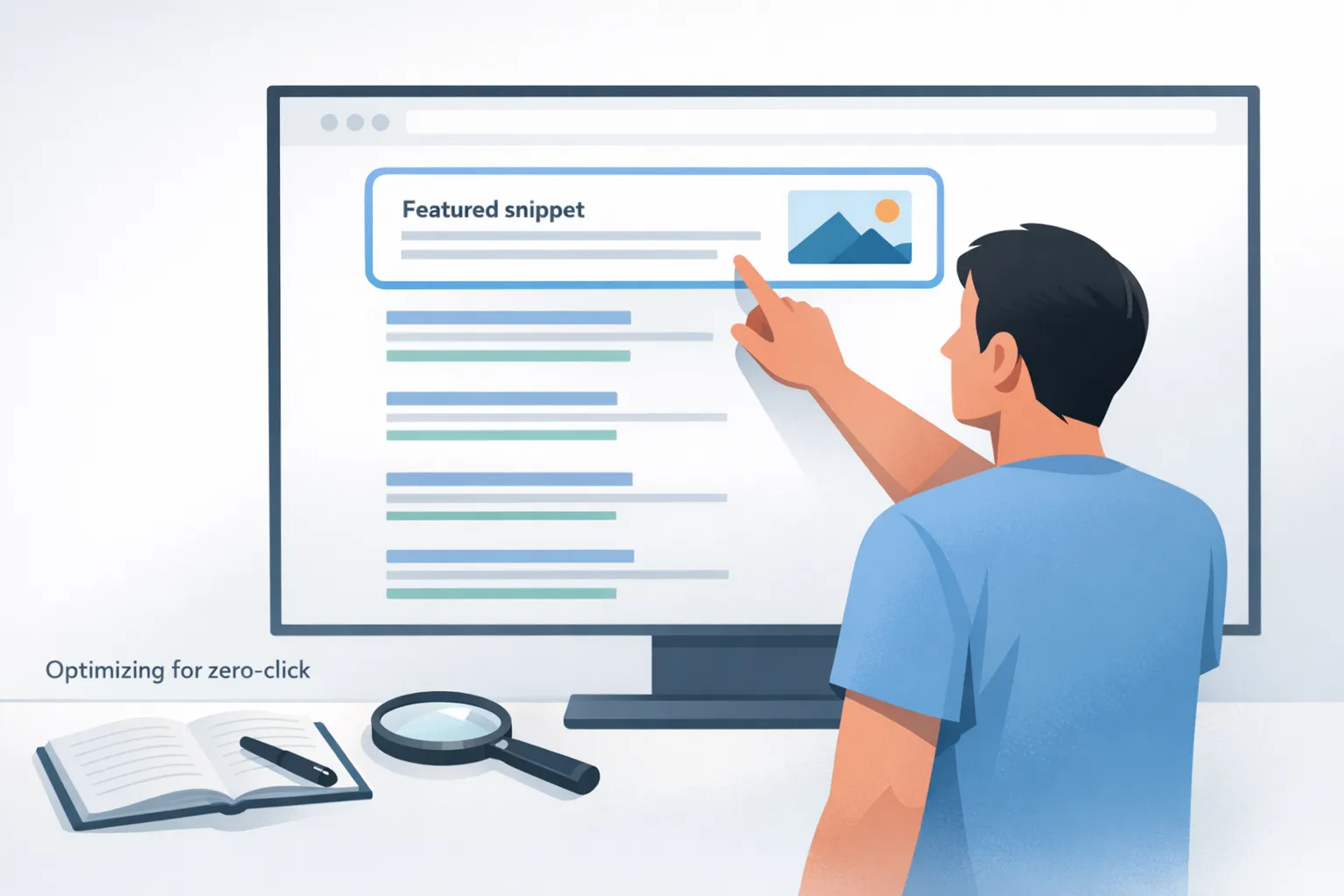
Verification: Confirm AI-Driven Zero-Click Tracking in GSC
To confirm success, verify that the AI Mode data is accessible in Performance and that you can compare AI-driven impressions with standard data. Source This enables you to document zero-click candidates, map them to ranking pages, and verify that exports align with the selected date range. Ensure snippet readiness audits are complete and an ownership and monitoring plan is in place to track changes over time. This verification ensures your zero-click reporting is actionable and trusted by stakeholders.
- AI Mode data is visible in Performance for the chosen property and date range
- Ability to compare AI Mode impressions/clicks with non-AI data
- Zero-click candidate list has been generated and mapped to ranking pages
- Exports from filtered and unfiltered data are created and aligned
- Snippet readiness audits are completed for identified pages
- Ownership, timelines, and success criteria are documented
- A monitoring plan is in place to track AI-related visibility over time
- Stakeholders have been briefed on findings and next steps
| Checkpoint | What good looks like | How to test | If it fails, try |
|---|---|---|---|
| AI Mode data visibility | AI Mode impressions and clicks appear in Performance for the selected date range | Open Performance, apply AI Mode filter, confirm data loads | Check permissions, regional availability, or try a different date range |
| Data comparison | Clear differential between AI Mode and non-AI data | Compare metrics side-by-side in the same date range | Adjust date range or filters to ensure parity |
| Zero-click candidate list | Candidates identified with high impressions and low clicks mapped to ranking pages | Review filtered AI Mode data and record mappings | Relax thresholds or redefine zero-click criteria |
| Exports alignment | Filtered and unfiltered exports align on date range and scope | Open both CSV/Sheets and compare rows/columns | Re-export with corrected filters or ranges |
| Snippet readiness | Opening copy, headers, and schema presence address snippet opportunities | Audit each candidate page against the checklist | Adjust content or schema and re-audit |
| Ownership and monitoring | Documented owners, timelines, and a plan to monitor metrics | Review the plan with stakeholders and confirm sign-off | Assign owners or refine timeline |
Troubleshooting: Zero-Click Reporting in GSC
Use this quick guide to diagnose and fix common hurdles when validating zero-click visibility in Google Search Console. You’ll verify AI Mode data availability, confirm date ranges align, ensure exports complete, and resolve issues that prevent accurate identification of non-click signals. Each entry provides a concrete fix you can apply today, so your zero-click reporting stays reliable, actionable, and ready to inform optimization decisions.
-
Symptom:
AI Mode data is not visible in Performance for the selected property or date range
Why it happens: AI Mode may not be enabled, or the region or account does not yet support the feature. Source
Fix: Verify AI Mode is enabled for your property and region; switch to a supported range and reload Performance.
-
Symptom:
Exports fail or data appears incomplete
Why it happens: Permission limits, browser issues, or incomplete export selections can interrupt data extraction. Source
Fix: Check user permissions, try a different browser, and export with the exact same date range for filtered and unfiltered views.
-
Symptom:
Date ranges do not align between AI Mode and non-AI data
Why it happens: Different date selections or filters were applied to each view.
Fix: Apply the identical date range to both views and re-export for comparison.
-
Symptom:
No zero-click candidates identified after filtering
Why it happens: Thresholds for impressions or CTR may be too strict or too lax.
Fix: Adjust thresholds to suit your traffic profile and run another pass to reveal legitimate candidates.
-
Symptom:
Snippet readiness audits reveal missing schema
Why it happens: Pages lack structured data marks (FAQ/HowTo) or sufficient entity density. Source
Fix: Add or update FAQ/HowTo schema, improve opening copy, and enhance on-page entity connections where appropriate.
-
Symptom:
Data appears inconsistent over time
Why it happens: Data sparsity, sampling, or filters not saved can cause variability.
Fix: Expand the time window, save filters, and schedule recurring exports to stabilize observations.
-
Symptom:
AI Mode data is unavailable in a region you expect
Why it happens: Regional rollout status limits access in some areas. Source
Fix: Confirm regional availability; if not supported, plan to use alternative signals and monitor when rollout expands.
-
Symptom:
AI Mode filter does not apply in Performance
Why it happens: UI glitches or permission issues can prevent filter application.
Fix: Clear cache, restart the session, re-open Performance, and ensure you’re signed in with an account that has access.
People also ask next: zero-click reporting in GSC
- What is zero-click reporting in GSC? Zero-click reporting focuses on AI Mode and other non-click signals to measure visibility when the SERP provides answers without a click, helping you demonstrate impact beyond CTR.
- How do I enable AI Mode in Performance? Open Performance for your property and apply the AI Mode filter to isolate AI-driven impressions and clicks; set the same date range for accurate comparison.
- What qualifies as a zero-click candidate? A query with high impressions but low clicks where AI Overviews or similar features appear on the SERP.
- How should I compare AI Mode vs non-AI data? Run both views for the same date range, compare impressions and CTR, and export data for side-by-side analysis.
- What should be audited for snippet readiness? Check the opening paragraph length, use simple headers, and apply relevant schema (FAQ/HowTo) where appropriate.
- How do I export data from GSC? Export both the filtered AI Mode data and the unfiltered data for the same date range, keeping filenames consistent.
- What are common pitfalls to avoid? Mismatched date ranges, incomplete exports, and relying solely on clicks to judge success.
- How can I demonstrate business impact? Pair visibility signals with cross-channel metrics and maintain a monitoring plan to show trends over time.
Common questions about zero-click reporting in GSC
-
What is zero-click reporting in GSC?
Zero-click reporting in GSC focuses on AI Mode and other non-click signals to measure visibility when the SERP provides answers directly without requiring a click. It helps you understand actual exposure, brand presence, and potential influence on discovery and intent, even when traffic from clicks is down. This approach emphasizes non-click signals as a portfolio-wide metric.
-
How do I enable AI Mode in Performance?
To enable AI Mode in Performance, open the Performance report for your property, then use the filter controls to select AI Mode so you isolate AI-driven impressions and clicks. Apply the same date range to both AI Mode and standard views to enable valid comparisons, and confirm the data loads before proceeding with analysis.
-
What qualifies as a zero-click candidate?
A zero-click candidate is any query with a high number of impressions but a relatively low number of clicks where AI Overviews or other zero-click SERP features appear. These queries indicate opportunities to improve snippet capture, schema, or content structure so your page becomes the chosen reference even when users do not click.
-
How should I compare AI Mode vs non-AI data?
Compare AI Mode versus non-AI data by running both views for the same date range, then examining differences in impressions and CTR. Export both datasets and place them side by side to identify where AI-driven results outperform or underperform. This helps separate visibility that comes from SERP features from direct clicks and informs where to focus optimization.
-
What should be audited for snippet readiness?
Auditing for snippet readiness involves verifying that pages present a concise opening, simple headers aligned to common questions, and schema where applicable such as FAQ or HowTo. Check entity density, ensure content answers the user query directly, and confirm the page is formatted for snippet extraction. This reduces friction when the SERP displays an answer.
-
How do I export data from GSC?
Export data from GSC by saving both the filtered AI Mode view and the unfiltered view for the same date range. Use consistent file naming and include the date in the filename. This enables clean side-by-side comparisons and helps track revisions to AI-driven visibility over time. It also supports audit trails and reproducibility.
-
What are common pitfalls to avoid?
Common pitfalls include mismatched date ranges, incomplete exports, and relying only on clicks to judge success. Also, treating AI Mode signals as direct traffic without considering downstream effects, failing to document ownership, and neglecting cross-channel impacts can undermine reliability. Avoid overfitting thresholds to a single period.
-
How can I demonstrate business impact?
To demonstrate business impact, pair AI-driven visibility with broader metrics such as brand lift, impressions, and assisted conversions across channels. Maintain a regular monitoring plan to show trends, share concise summaries with stakeholders, and connect improvements in non-click visibility to downstream outcomes like awareness and engagement, not just explicit clicks.